(Compatible article number 25650)
How do I set up the Venna keyboard and mouse?
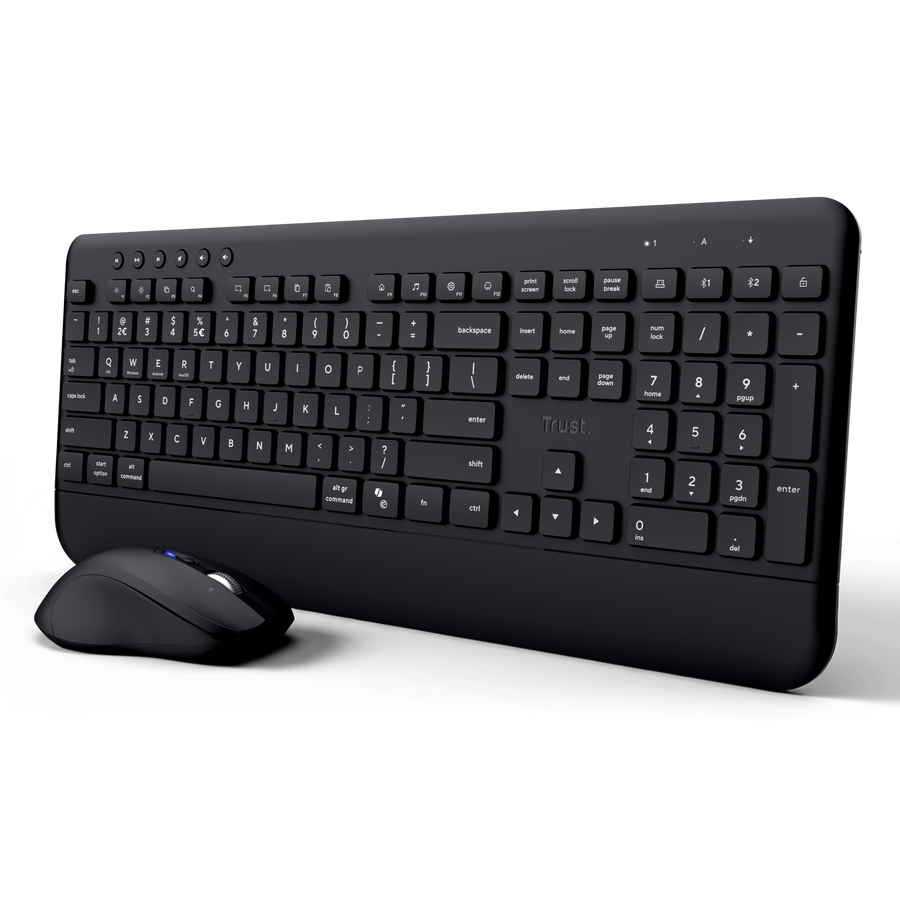
The Venna set supports one shared 2.4 GHz USB-A receiver connection and two Bluetooth connections, allowing you to use the keyboard and mouse with up to three devices.
Prepare the keyboard
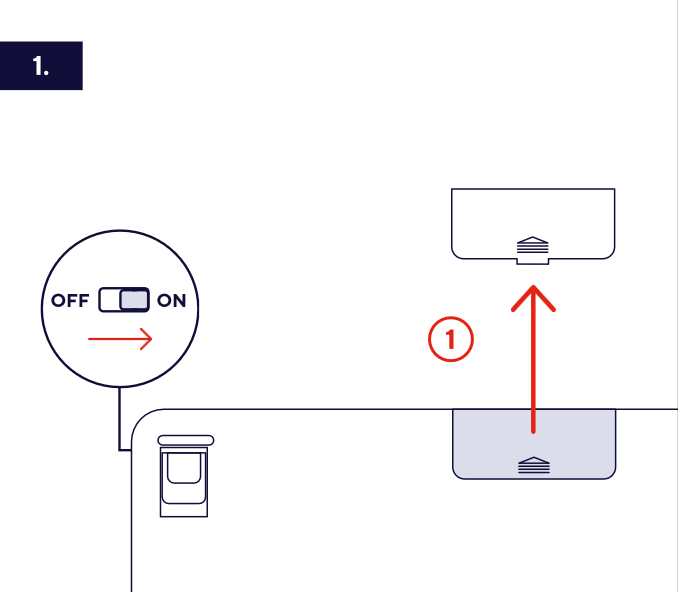
- Open the battery compartment on the underside of the keyboard.
- Remove the yellow sticker from the battery compartment.
- Move the keyboard power switch to ON. The power switch is located on the upper-right edge of the keyboard.
Prepare the mouse
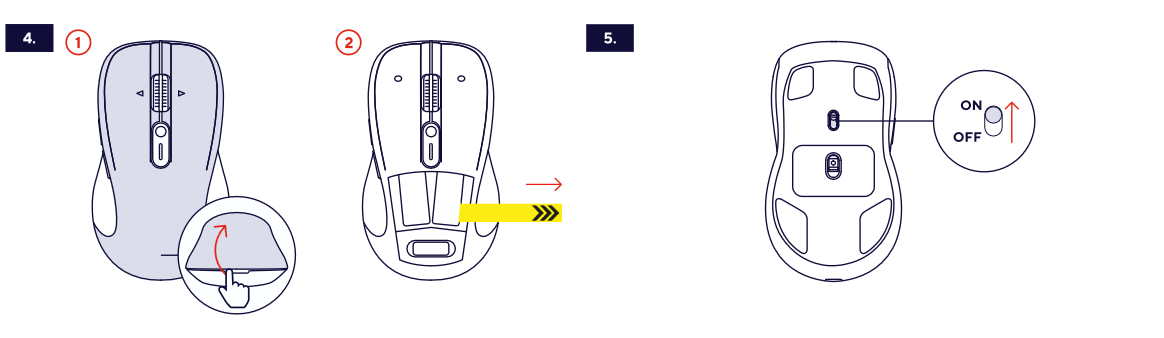
- Lift and remove the upper cover of the mouse.
- Remove the yellow sticker from the battery compartment.
- The set uses one shared 2.4 GHz USB-A receiver for both the keyboard and mouse. The receiver is stored inside the mouse, underneath the removable upper cover.
- Move the power switch on the underside of the mouse to ON.
Connect using the 2.4 GHz USB-A receiver
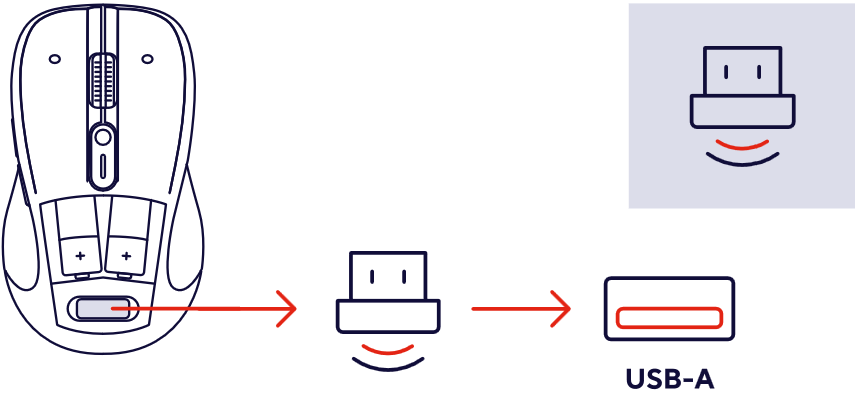
- Remove the shared USB-A receiver from the mouse.
- Connect the receiver to an available USB-A port on your computer.
- On the keyboard, press the key marked with the USB receiver symbol.
- On the mouse, the default mode is the receiver one.
Connect the keyboard using Bluetooth
- Press and hold the Bluetooth 1 or Bluetooth 2 key on the keyboard to enter pairing mode for that connection slot.
- Open the Bluetooth settings on the device you want to connect.
- Select VENNA KB1 or VENNA KB2, depending on the selected Bluetooth slot.
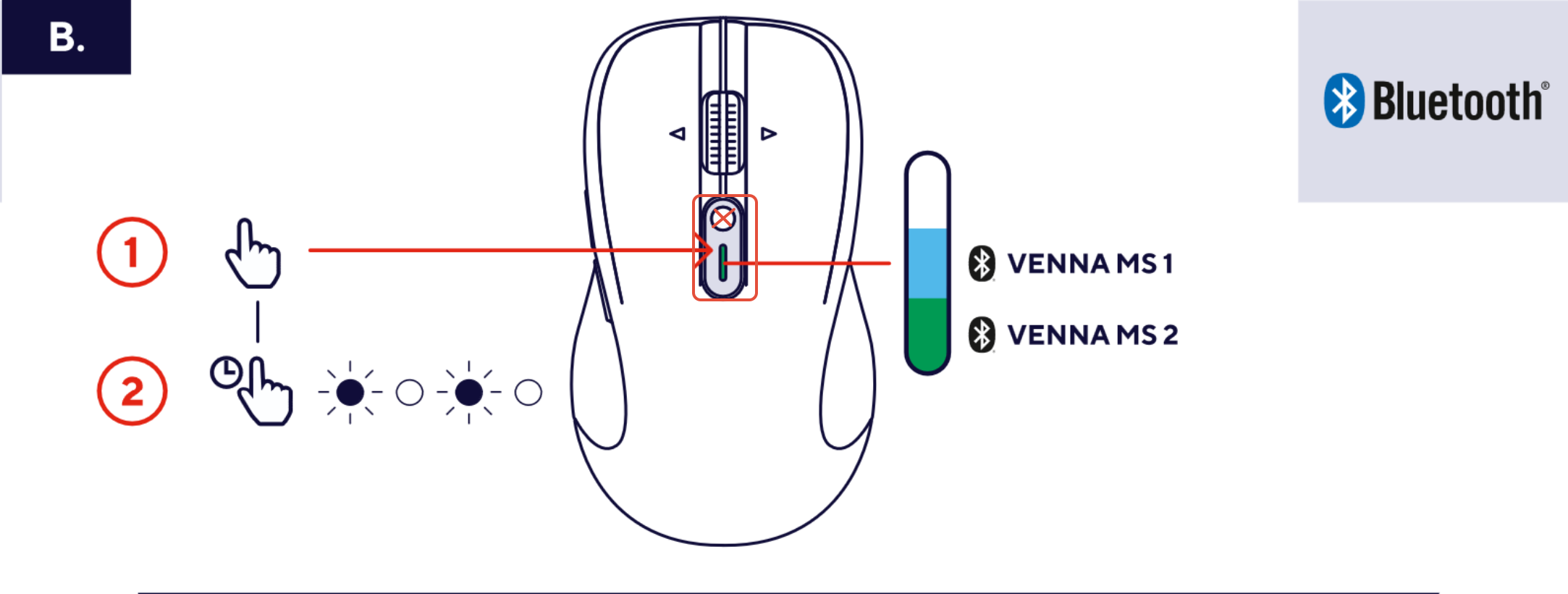
Connect the mouse using Bluetooth
- Press the button (highlighted in blue) on the mouse (not the circular DPI Button) to select Bluetooth connection 1 or 2.
- Press and hold the connection button to enter Bluetooth pairing mode.
- Open the Bluetooth settings on the device you want to connect.
- Select VENNA MS1 or VENNA MS2, depending on the selected Bluetooth slot.
---------------------------------------------------------------------------------------------------------------------------------------------
Keyboard overview
- Full-size QWERTY keyboard with numeric keypad.
- Silent keys.
- 12 Fn multimedia functions.
- 6 dedicated multimedia buttons.
- Dedicated connection keys for the shared USB receiver, Bluetooth 1 and Bluetooth 2.
- Multi-OS keyboard functions for Windows, macOS, Android and iOS.
- Spill-resistant design.
- Fn Lock for multimedia or Function Keys.
---------------------------------------------------------------------------------------------------------------------------------------------
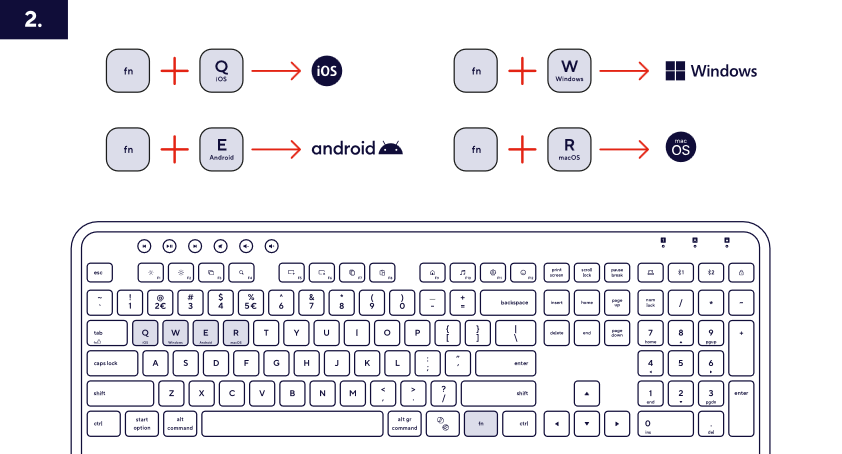
Select the operating system
Select the operating-system layout that matches the connected device:
- Fn + Q - iOS.
- Fn + W - Windows.
- Fn + E - Android.
- Fn + R - macOS.
---------------------------------------------------------------------------------------------------------------------------------------------
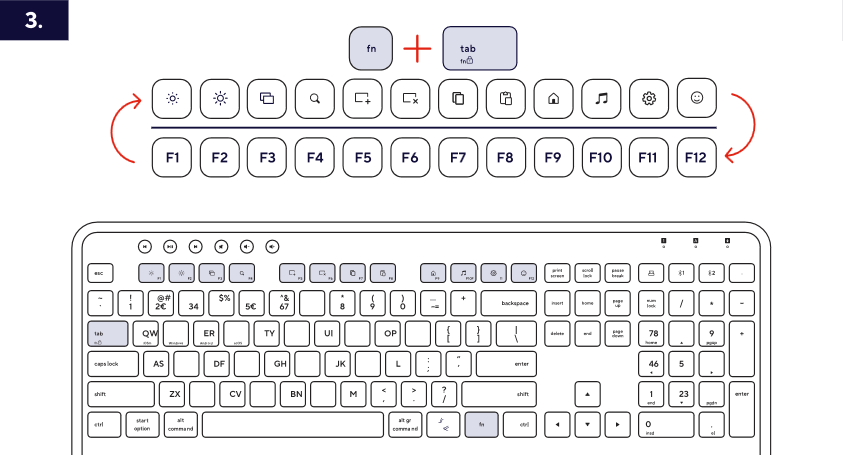
Keyboard multimedia controls
The function-row keys provide multimedia and system shortcuts when used with the Fn key. The keyboard also includes dedicated multimedia keys for quick access to commonly used functions.
---------------------------------------------------------------------------------------------------------------------------------------------
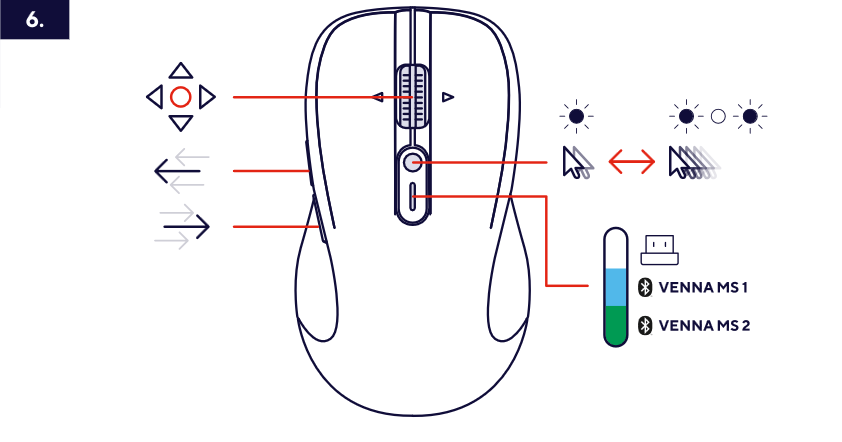
Mouse overview and controls
- Silent left and right buttons.
- Metal hyperscroll wheel.
- Tilt-wheel support for horizontal scrolling.
- Forward and back thumb buttons.
- Adjustable DPI.
- Connection selector for the shared USB receiver and two Bluetooth slots.
---------------------------------------------------------------------------------------------------------------------------------------------
Battery replacement
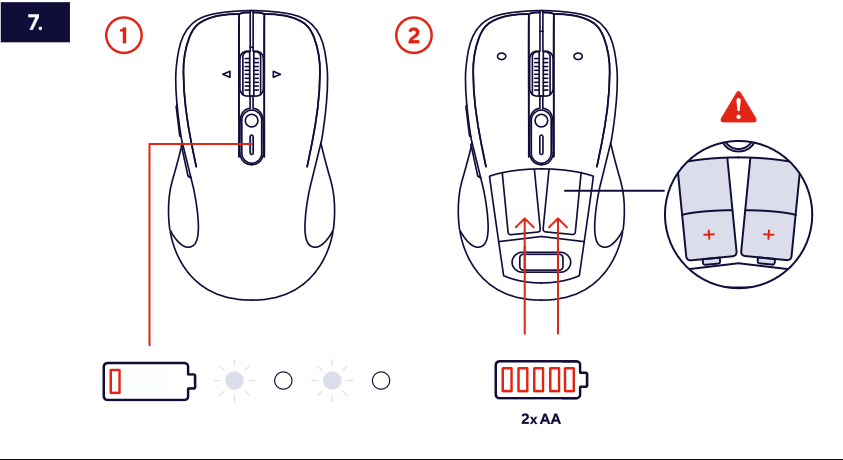
The keyboard uses 2 AAA batteries and the mouse uses 2 AA batteries.
When replacing the mouse batteries, remove the upper cover and insert the batteries according to the polarity markings.
---------------------------------------------------------------------------------------------------------------------------------------------
Compatibility
The Venna keyboard and mouse can be used with:
- Windows devices.
- macOS devices.
- Android devices.
- iOS devices.
- PCs, laptops, tablets and smartphones with a compatible Bluetooth connection.
- Devices with an available USB-A port when using the supplied 2.4 GHz receiver.
---------------------------------------------------------------------------------------------------------------------------------------------
Troubleshooting
The keyboard or mouse does not work through the USB receiver
- Make sure both devices are switched on.
- Make sure the shared USB-A receiver is connected directly to an available USB-A port.
- Select the USB receiver connection on the keyboard and mouse.
- Try another USB-A port.
The keyboard does not appear in the Bluetooth device list
- Make sure the keyboard is switched on.
- Repeat the Connect the keyboard using Bluetooth procedure above.
- Make sure Bluetooth is enabled on the device you want to connect.
The mouse does not appear in the Bluetooth device list
- Make sure the mouse is switched on.
- Check that the correct Bluetooth slot is selected.
- Repeat the Connect the mouse using Bluetooth procedure above.
The keyboard layout does not match the connected device
Select the correct operating-system mode using the shortcuts listed in Select the operating system above.
The mouse does not respond
- Make sure the mouse power switch is set to ON.
- Check or replace the AA batteries.
- Reconnect the mouse using the currently selected connection method.
---------------------------------------------------------------------------------------------------------------------------------------------
Frequently asked questions
Connectivity
-How many devices can I connect?
The Venna supports one 2.4 GHz USB receiver connection and two Bluetooth connections, for up to three connected devices.
-Does the keyboard have its own USB receiver?
No. The keyboard and mouse share a single USB-A receiver. It is stored underneath the removable upper cover of the mouse.
-What Bluetooth names should I select?
For the keyboard, select VENNA KB1 or VENNA KB2. For the mouse, select VENNA MS1 or VENNA MS2.
Compatibility
-Which operating systems can I use?
Refer to the Compatibility and Select the operating system sections above.
Keyboard
-Where is the keyboard power switch?
The keyboard power switch is located on the upper-right edge of the keyboard.
-How do I change the operating-system mode?
Refer to Select the operating system above.
Mouse
-Where is the USB receiver stored?
Remove the upper cover of the mouse. The shared USB-A receiver is stored inside the mouse.
-Can the mouse scroll horizontally?
Yes. The metal hyperscroll wheel supports tilt scrolling for horizontal navigation.
Was this article helpful?
That’s Great!
Thank you for your feedback
Sorry! We couldn't be helpful
Thank you for your feedback
Feedback sent
We appreciate your effort and will try to fix the article